
How it works

Four steps inside Ancestry

Canopy is a browser extension. It adds its tools to the Ancestry pages you already use, formats only when you ask, and saves nothing until you click Save.

  1. Install Canopy and start your free trial

    Add Canopy to Chrome from the Chrome Web Store. The 7-day trial needs no credit card and starts formatting immediately, with full formatting plus seven sample reports. Canopy runs on ancestry.com, ancestry.ca, ancestry.co.uk, and ancestry.com.au.

    The first time you accept Canopy’s terms, you are offered a GedCom download for your tree — the key to reports, kinship, and Report Writer. Formatting works without one.

    Add to Chrome — free

  2. Open your Ancestry tree

    Canopy adds a ✦ Canopy menu to Ancestry’s navigation bar and places its buttons on the pages where they help: profiles, Edit Person sidebars, merge and compare pages, census records, the Horizontal tree, DNA matches, and ThruLines.

    Quick Tour

    Page tours

    The first time you open a page where Canopy adds tools, a box asks whether you want a quick tour of the Canopy features on that page. Yes walks a short balloon tour of the controls; No closes the box. Check Do not show again before No to remember that choice for this page on this device. Escape is the same as No.

    Each balloon says Press any key to continue, and the tour skips a control that is not on the page. Tours are offered on the Ancestry home page, a profile, merge review, the merge editor, the horizontal tree, a census comparison, DNA matches, and ThruLines — each page once per browser session unless you chose Do not show again.

    Trees

    Switching trees

    Choosing a different tree from Ancestry’s tree menu leaves the page you were on and opens that tree’s home page. Canopy loads the GED index there before scores, reports, or other tree tools.

    Choosing the tree you are already in, or choosing a tree while you are already on the home page, stays put. Opening another tree from a direct link is not redirected.

  3. Format, check, and review every change before you save

    Click a ✦ button and Canopy reformats every name, date, and place in view to your preferences. Each changed field is outlined; hover it to see the original value beside the formatted one and undo that field alone. No change is permanent until you click Save, and cancelling the sidebar discards them all at once.

    Where to find each button
    WhereButtonWhat it formats
    Edit Person sidebar, any page ✦ Format Every name, date, and place in the sidebar. Turn on Auto-format on open to run it as the sidebar opens.
    Edit Facts panel ✦ Format Fields Every editable field in the panel, for vital facts and custom events alike.
    Add father, mother, spouse, or child ✦ Check Format The new person’s details before you click Add, in both New person and From your tree modes.
    Merge or compare page ✦ Format Fields · ✦ Format & Save The fields Ancestry will write to your tree, including people marked New in the review.
    Profile toolbar, beside Ideas, Tools, and Print ✦ Format Family The focal person, parents, spouse, and children — opened, formatted, and saved in turn.
    Horizontal tree toolbar ✦ Format Ancestors The root person and every confirmed ancestor visible on the tree.
    ✦ Canopy › GedCom Tools Format Families One family group at a time from the GED index, resuming where it left off.
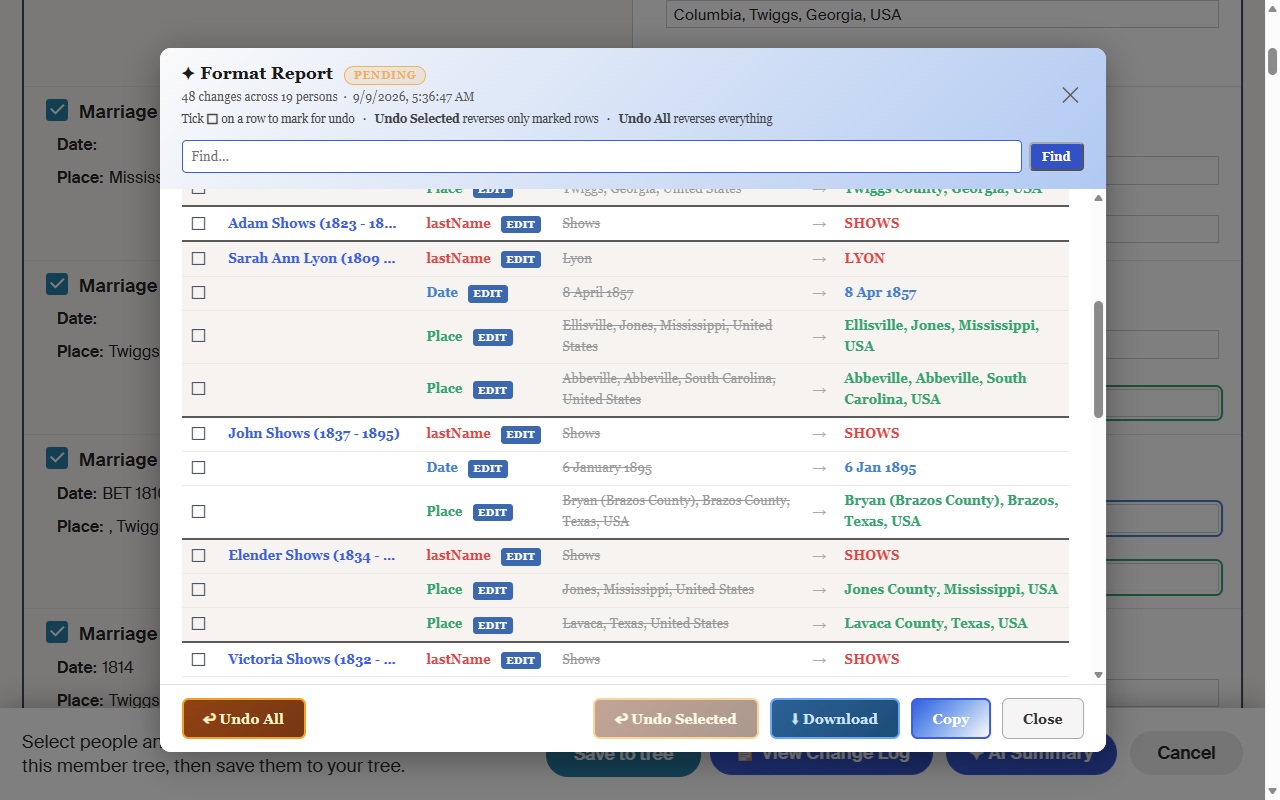
    The Format Report listing 48 changes across 19 persons, with each original value struck through and the formatted name, date, or place beside it, plus Undo All, Undo Selected, Download, and Copy buttons
    The Format Report after a family run: 48 changes across 19 persons, with Undo All, Undo Selected, Download, and Copy.

    Then let Canopy check the evidence

    On a profile, ✦ Timeline Analysis runs 19 rules against the dated facts and family years and outlines the fact cards involved. The quality star scores the profile 0–100, and the kinship badge shows how the person connects to you.

    On a census record, Compare with Canopy scores the household against your tree’s family. On a merge page, the Vital Stats Check runs on its own.

    Data quality tools
  4. Import a GEDCOM for reports, charts, and Report Writer

    Formatting works without a GedCom; reports, kinship, and Report Writer need one. Each Ancestry tree has its own index, kept on your computer.

    • Download GedCom File opens Ancestry’s export page and, when the file finishes downloading, starts the import.
    • If the browser will not let Canopy read the file, click Import downloaded file and pick it from Downloads.
    • Import later at any time from ✦ Canopy › GedCom Tools › Import GedCom File.
    • GedCom File Info shows the current file — name, GEDCOM date, file date, size, last import — and index counts: people, sex, families and how many are already Canopy Formatted, dated facts, and residences.
    • A weekly reminder on each tree shows the date of the last import.
    • Choosing a different tree from the header loads that tree’s index, or shows the import reminder if it has none yet.

    Then open ✦ Canopy › GedCom Tools for Report Writer, Relationship Finder, Prune Distant Branches, and Reports & Analysis.

    See the reports

Get Canopy

Start with your tree

Seven days free, no credit card. Then $69.95 a year for every report and tool.