
Quick Tour
Page tours
The first time you open a page where Canopy adds tools, a box asks whether you want a quick tour of the Canopy features on that page. Yes walks a short balloon tour of the controls on the page. No closes the box. Check Do not show again before No to remember that choice for this page on this device. Escape is the same as No.
Each balloon says Press any key to continue. The tour skips a control that is not on the page.
Tours are offered on the Ancestry home page, a profile, merge review, the merge editor, the horizontal tree, a census comparison, DNA matches, and ThruLines. Each page is offered once in a browser session unless you chose Do not show again.
Switching trees
Choosing a different tree from the Ancestry tree menu leaves the page you were on and opens that tree’s home page. Canopy loads the GED index there before scores, reports, or other tree tools.
Choosing the tree you are already in, or choosing a tree while you are already on the home page, stays put. Opening another tree from a direct link is not redirected.
Profile & Sidebar
Edit Person Sidebar
One person at a time, on any page
Any page Open the Edit Person sidebar for any individual. A ✦ Format button appears automatically in the sidebar footer.
Click it to reformat every name, date, and place field. Fields that change are highlighted with a coloured outline; hover for an undo popup.
If Auto-format on open is enabled in Preferences, the formatter runs the moment the sidebar opens — no button click needed.
Format Fields — Edit Facts
Format while editing individual facts
Facts page When the Edit Facts panel is open, a ✦ Format Fields button appears in the panel footer alongside Save and Cancel.
Formats every editable name, date, and place field visible in the panel without leaving the edit view. Each changed field is highlighted and individually undoable.
Works for both vital facts and custom events added to the timeline.
Add Person / Add Family
Check formatting before you save
Profile page When adding a new family member, a ✦ Check Format button appears in the sidebar footer alongside Add and Cancel.
Type the person's details as normal, then click ✦ Check Format before saving to tidy up casing, date format, and place structure in one step.
Works in both New person and From your tree modes.
Format Report & Undo
Review changes — everything is undoable
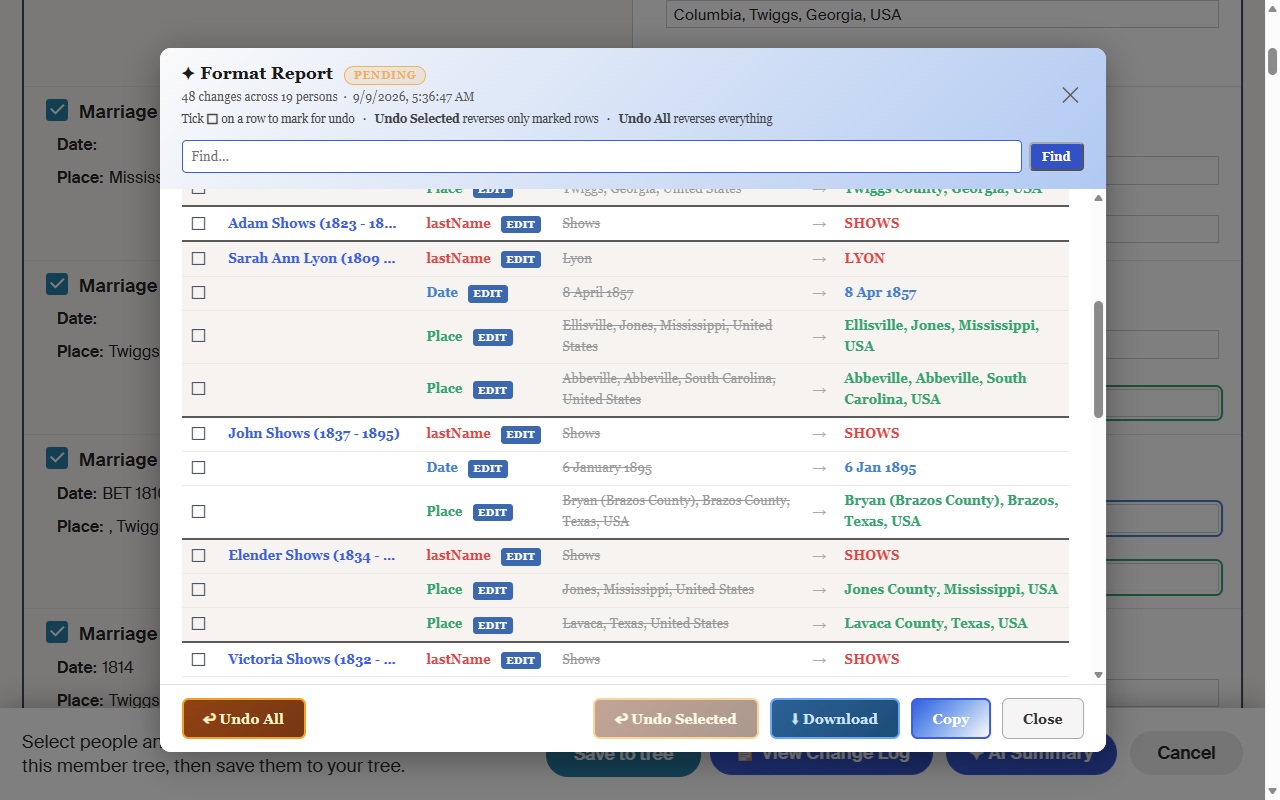
Any page After any formatting run, hover over a highlighted field to see the original value alongside the formatted value. Click Undo to restore that field only.
No change is permanent until you click Save. Cancel the sidebar at any time to discard all changes at once. On a merge page, Format & Save is the path that clicks Save to tree after you close the change log.
Relationship Path
Marks your link from Relationship to Me
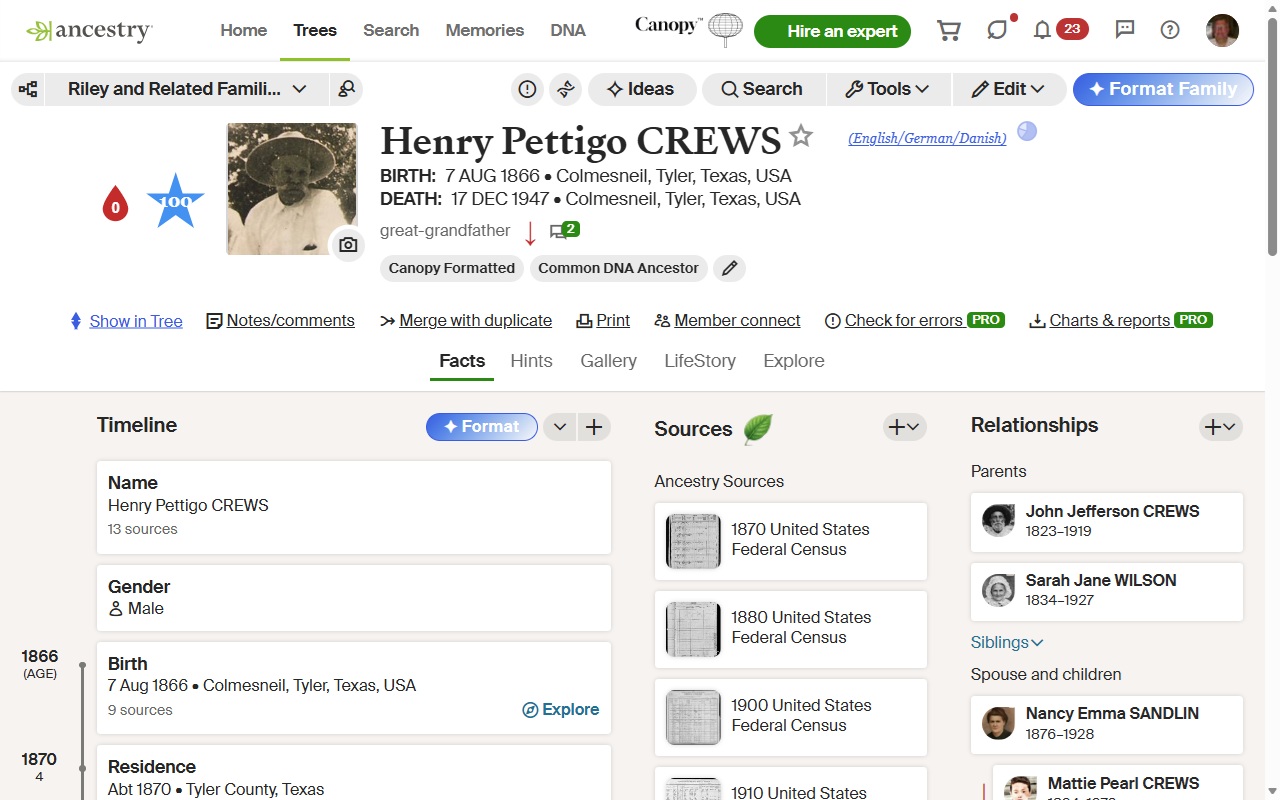
Profile page On any open profile, Canopy marks your connection from the tree home person using a saved Relationship to Me path. Small red direction marks show which family cards sit on your link to the profile person.
Canopy does not open Ancestry’s Relationship to Me dialog on every Facts load. It reuses a path already stored for that profile, or reads the dialog only when you open it yourself. Turn off Parents / Spouse / Children card marks in Behavior → Automation while keeping the kinship-label arrow if you prefer. Relationship calculation shares the profile-analysis switch with the quality star, fact analysis, and graph-distance badge, and is paused during any automated run.
On the relationship label (Your 2nd great-grandmother, etc.): ↓ for a lineal parent or grandparent term; ↑ for collateral relatives (aunt, cousin, etc.).
In the Relationships sidebar:
- Parents — ↑ on the parent card that appears next on your path (cousins, aunts/uncles, etc.). For a full sibling (brother / sister, not half or step), both linked parents are marked.
- Spouse and Children (collateral kin) — ↑ on the spouse card when your path continues through a husband or wife of the profile (e.g. husband of a cousin).
- Parents or grandparents — on Spouse and Children, ↓ on the child who continues your path; * when the profile person is you on that path; spouse cards on the path are also marked.
Hover any mark for a short tooltip. Marks refresh when you navigate to a new profile or when Ancestry rebuilds the Relationships panel.
Bulk Operations
Format Fields — Merge Page
Clean up fields before confirming a merge
Merge & Compare page A ✦ Format Fields button appears in the page toolbar on any Ancestry merge or compare-records page.
Reformats the name, date, and place fields Ancestry will write to your tree. That includes people already in the tree and people marked New and added during the review. Both get the same formatting. The other tree's suggestion column is left as shown, and place prompts are not raised for it. Highlighted fields are individually undoable. Closing the change log does not save.
✦ Format & Save is on the footer until you choose Format Fields. That choice removes it. Format Fields and Save to tree stay. Use Save to tree when you are ready. If you choose Format & Save first, it runs the same formatter, then always shows the change log. Closing that log — including when nothing changed — clicks Save to tree. Undo All restores every field and does not save. Undo Selected restores the marked rows, then saves.
Format Family
Focal person + all visible relatives
Profile · Facts page The ✦ Format Family button appears in the toolbar on any /facts or /hints profile page.
Automatically opens the Edit Person sidebar for the focal individual and each visible family member — parents, spouse, and children — formats all fields, saves, and moves to the next person. A live progress banner tracks the run.
While any automated run is active (Format Family, Format Families, Fill Missing Genders, Prune Distant Branches, and similar), Canopy turns off the profile analysis tools — quality star, fact analysis, relationship marks, and graph-distance badge — and turns them back on when the run finishes. Leftover pause flags from a finished run (including after a browser restart) are cleared so those tools return automatically.
If Chrome replaces the Ancestry page with a load-failure screen (“This page isn’t working”, “This site can’t be reached”, or similar) during Format Family or another automated run, Canopy refreshes the tab so the run can continue.
Format Ancestors
Multiple generations from the pedigree tree
Pedigree tree · Horizontal mode A toolbar anchored at the top centre of the tree display offers ✦ Format Ancestors and Origins. It appears only in Horizontal view and hides when you switch to another tree layout. It also hides when you choose Print from Ancestry’s tree menu or open the browser print dialog, then returns when printing finishes.
Clicking it formats the root person and every ancestor currently visible on the tree. For each confirmed ancestor the formatter opens the Edit Person sidebar, formats all fields, saves, and advances automatically. Empty slots and unconfirmed Potential hint matches are skipped.
Language Support
Dates, names, and places across languages
All modes Dates written in English, French, German, Dutch, Spanish, Italian, Portuguese, Latin, and other European languages are recognised and converted to DD Mon YYYY format.
Historic and Latin country names are translated automatically — Hispania → Spain, Francia → France, Helvetia → Switzerland, Hibernia → Ireland.
US place lookups use a 164,000-entry database to expand bare city or county names, with a disambiguation prompt when a name exists in multiple states. Tyler, Texas is left as written (Tyler County, not the city in Smith County) — Canopy does not insert a county or open the city/county picker. If a more specific form is already written or confirmed once on that profile or Format Family walk (for example Tyler, Smith, Texas), the same rewrite is reused for matching city, state places in that family only, then forgotten.
Canadian places are detected from the fact (province or Canada tokens, including
on ancestry.ca). The modern form is Municipality, MRC or county, Province,
Canada — for example Saint-Calixte, Montcalm, Québec,
Canada. Québec keeps the accent. An MRC is inserted only when the
municipality still exists and the MRC/county is unique. Historical three-part
places are left honest; prairie/Newfoundland Division No. n is not
inserted. CA is never used (that abbreviation is California).
English ancestry.ca pages are supported. French field labels such as Naissance and Décès are recognised so scrapers still find date and place boxes; Canopy’s own UI stays English.
GED Batch Processing
Format Families
Format one family group at a time from the GED index
Canopy menu Click ✦ Canopy › GedCom Tools › Family Formatting Tools › Format Families from the Ancestry navigation bar.
If this tree already has an imported GED index, Format Families uses that index and does not ask for a file. Switching to another Ancestry tree loads that tree's stored index immediately. A progress bar shows while Canopy counts the family groups to format. A GED file is requested only when no index is available. People whose GEDCOM MyTree tag is Canopy Formatted are left off that list. The family representative is the husband when the family has one, otherwise the wife. A tag on that person drops the whole family; the other spouse is not opened instead. When a family finishes, Canopy adds that person's id to a short list for this tree. The next Format Families run leaves them off. The full GED index is not rewritten.
Canopy remembers your progress per file using the filename and file size as a unique key. Each file has its own independent pointer — processing Hillin.ged does not affect Cantu.ged.
Bulk Replace (same Family Formatting Tools menu) applies
reviewed Old → New pairs for surnames or places — not both
in one run, and never dates. Surname Old values match the GED primary last name
(quotes and case ignored, so Rileley finds "RILELEY").
Scan the GED index, uncheck rows to skip, then
queue people on the Format Families walker (1 / 10 / 100 / All).
Optional Load CSV takes a Report Writer PID file
(one Ancestry person ID per line) and limits the scan and walk to
those people; Old → New pairs still decide what text changes.
New surnames follow your Options capitalization (upper, proper, or as
typed, including Mc/Mac and nobiliary particles). On each profile the
Edit Person sidebar also auto-formats Last Name, Maiden Name, and
Married Name fields to those same Options. Start asks you to
type Go before any profile is opened. Each
profile is loaded, the old value is checked on the live page, and
only mapped fields are saved. A places run also opens timeline fact
cards whose displayed place still matches an Old value (residence,
marriage, burial, and the rest) and saves the New place there.
After a successful run Canopy patches
those people in the GED index (so an immediate undo such as Hillen
→ Hillin can find the new spelling) and then asks you to
download and import a fresh GedCom so reports and
later sessions match Ancestry. A top progress bar shows N of M with
Pause and Quit. Pause finishes the current
profile, then asks Continue or Quit. Quit finishes the current profile and
opens the report. When the run finishes, Canopy opens a
Bulk Replace Report — the same person / field / before
→ after table as Format Report. Download and Copy are on that report;
undo is unavailable because each profile was already saved and the page
reloaded. Maps are stored in their own key; they are not
surname equivalences (Lejeune ↔ Young stays reports/matching only).
During a long run Canopy keeps the computer awake (the monitor may still sleep). When Apply “Canopy Formatted” tag is on in Options, each family receives that tag before the next profile opens.
The confirmation dialog shows three states:
| First load | Shows total profiles and a Start button. |
| Partially processed | Shows N of Total processed (M remaining) with Resume → and Start Over buttons. |
| All processed | Shows all N profiles already processed with a Start Over button. |
Use the radio buttons (1 / 10 / 100 / All) to control how many profiles are formatted in the current session. The pointer advances by one after every successfully saved profile, so a mid-run interruption loses at most one profile.
Change Log
Every field change, sorted and downloadable
Canopy menu Download Change Log appears in the ✦ Canopy dropdown after any GED batch run or Fill Missing Genders run. It is also offered as a button in the GED Batch Complete and Fill Missing Genders — complete dialogs.
The log lists every field that was reformatted across the entire batch, grouped by person and sorted alphabetically by surname in SURNAME, Given Name order.
Each entry shows the field label, the original value, and the formatted value:
JONES, Thomas Edward
  First Name: THOMAS EDWARD → Thomas Edward
  Last Name: jones → JONES
  Birth Date: jan 5 1923 → 5 Jan 1923
  Birth Place: houston, tx → Houston, Harris County,
               Texas, United States
The file is a plain .txt download named
Canopy_ChangeLog_YYYY-MM-DD.txt. The menu item is hidden
until a batch has been run in the current browser session.
Prune Distant Branches
Safely remove the outermost Kinship Tier group
Canopy menu ✦ Canopy › GedCom Tools › Family Formatting Tools › Prune Distant Branches
This function removes individuals that are not blood relatives and who are also several generations from any blood relatives. For example: “The mother-in-law of your wife’s third cousin, once removed.”
This paid-license tool permanently deletes exactly one Kinship Tier group from the current Ancestry tree per run. It selects only the highest distance still present in the imported GED index. A lower group cannot be processed until every higher group is gone, and Kinship Tier 6 or below is never eligible.
Before deletion, Canopy shows the tree, GED base person, selected distance, and number of profiles, then requires delete to be typed. During the run, Pause and Cancel controls remain available. Each confirmed deletion is removed from the local index before the next profile begins. Blood relatives and the GED base person are protected by independent safety checks immediately before Ancestry’s final Delete button is clicked.
Canopy creates an Ancestry custom tag named Do not delete the first time a usable profile is open in each tree — and again as this tool starts, if it has not been created yet — then remembers that the tag is ready so it never searches for or creates it again. The tag is never created once a run is under way, so Ancestry’s tag panel is never opened on a profile queued for deletion. Add that tag to any person who must be retained. When a queued profile opens, Canopy verifies its displayed tags before touching the Delete menu. A matching person is left in the tree, remembered as protected in the local index, and never queued by a later run. If the tag list cannot be verified, Canopy fails safely and skips that person rather than risk deleting them.
Tagging also protects the people who hold that person to your tree. Blood relatives never need it — every ancestor of yours and every descendant of those ancestors is Kinship Tier 0 and permanently ineligible, however distant the cousinship. But someone attached only through marriages hangs on a chain of in-laws, and deleting that chain would leave them floating with nothing attached. Canopy follows the shortest way back from each tagged person to the nearest blood relative and protects every person along it, so the connection survives the run. Tagged people do not lock lower rings: an orphan kept by the tag at Kinship Tier 99 is skipped, and Prune continues with the next untagged group.
Releasing a protected person. Remove the Do not delete tag on their Ancestry profile and let the page finish loading. Canopy re-reads the tag list on every profile visit and forgets the protection it remembered, confirming with a toast. That person becomes eligible the next time Prune Distant Branches runs — no GedCom re-import is needed. Adding the tag back protects them again on the same visit.
After each deletion Ancestry decides where the browser goes next — the closest remaining relative, the tree page, or a “no longer available” page. The run resumes from whichever page loads, so the progress bar keeps counting without manual help. Anyone Ancestry has already removed is counted as done and skipped rather than stopping the run.
“We’re Sorry, This Page Is No Longer Available” is a normal sight during a run, and nothing needs to be clicked. Ancestry serves it both after a successful deletion and for a person the tree no longer has. Because that page can never advance the run by itself, Canopy acts on it as soon as it loads: the person is settled, dropped from the local index, and the next profile is opened. The progress bar stays on screen throughout and keeps counting.
While a run is active, Canopy switches everything else off: no Format buttons, quality star, graph-distance badge, lifespan checks, unsourced-fact marks, relationship calculation, or menu injection. Those profile analysis tools share one switch that any automated run (Format Family, Fill Missing Genders, Prune Distant Branches, and similar) turns off until it finishes. Each profile is opened only to be deleted, so the progress bar and the deletion flow are the only Canopy code touching the page. Index edits are applied in memory during the run and written to storage in one batch, so deletions stay fast on large trees.
Deleted people are also dropped from the “Last Profile Visited” memory, and a run never records one of its own profiles there. That keeps the banner — and Auto-open last profile — from steering your next visit to Ancestry at a person who no longer exists.
Once the last person has been deleted the progress bar closes and a Cleaning your local index notice takes its place while the remaining deletions are written to Canopy’s copy of your tree. Leave the tab and the browser open until that notice clears — closing early can leave deleted people in the index, which holds the finished group at the top of the list. Canopy then sends the tab to the Ancestry home page, hard-refreshes it to clear anything the run left behind, and shows the results on that clean page.
The full step-by-step trace of a run is available as
_amfAutoRemoveDebugDump() in the browser console — useful when
reporting a run that stalled.
The bar also has a Skip button: it leaves the current person in the tree and moves to the next one, which clears a profile Ancestry refuses to open without ending the run.
Skipping by hand is rarely needed. If a page swallows Canopy’s navigation — the Ancestry tree viewer sometimes does — the run re-opens the profile through the browser tab itself. A person whose Edit › Delete never appears, or whose confirmation dialog never shows, is left in the tree after a few tries and the run moves on. The progress bar counts them as “left in tree” and the closing summary names them with the reason, so only a genuine safety-check failure stops a run early.
When Ancestry will not open a profile after a few tries, the run pauses and asks: Ancestry normally refuses a profile only when the person has already been deleted, so Canopy offers to delete from index or keep in index. Deleting touches nothing on Ancestry — it only clears the local record, which is what lets the next Kinship Tier group become reachable. Either answer resumes the run with the next person, or finishes it if that was the last one. The question is stored with the run, so an Ancestry re-render cannot lose it.
Index edits are written to storage at the end of every run and then read back to prove they landed — a deletion that stayed in the index would hold the finished group at the top of the list and block every lower group. If the write cannot be confirmed, the report says so and tells you to run the tool again or re-import.
GedCom Tools
The first time you accept Canopy’s terms, you are offered a GedCom download. After that, a weekly reminder on this tree shows the date of the last import. Formatting works without a GedCom; reports, kinship, and Report Writer need one. Download GedCom File opens Ancestry’s export page and, when the file finishes downloading, starts the import. If the browser will not let Canopy read the file, click Import downloaded file and pick it from Downloads. You can also import later from ✦ Canopy › GedCom Tools › Import GedCom File. GedCom File Info shows the current file (name, GEDCOM date, file date, size, last import) and index counts (people, sex, families with how many are already Canopy Formatted, dated facts, residences). Each Ancestry tree has its own index. Choosing a different tree from the header tree dropdown loads that tree’s index (or shows the import reminder if that tree has none yet).
Report Writer
Custom PDF reports from your GED index
Canopy menu ✦ Canopy › GedCom Tools › Report Writer
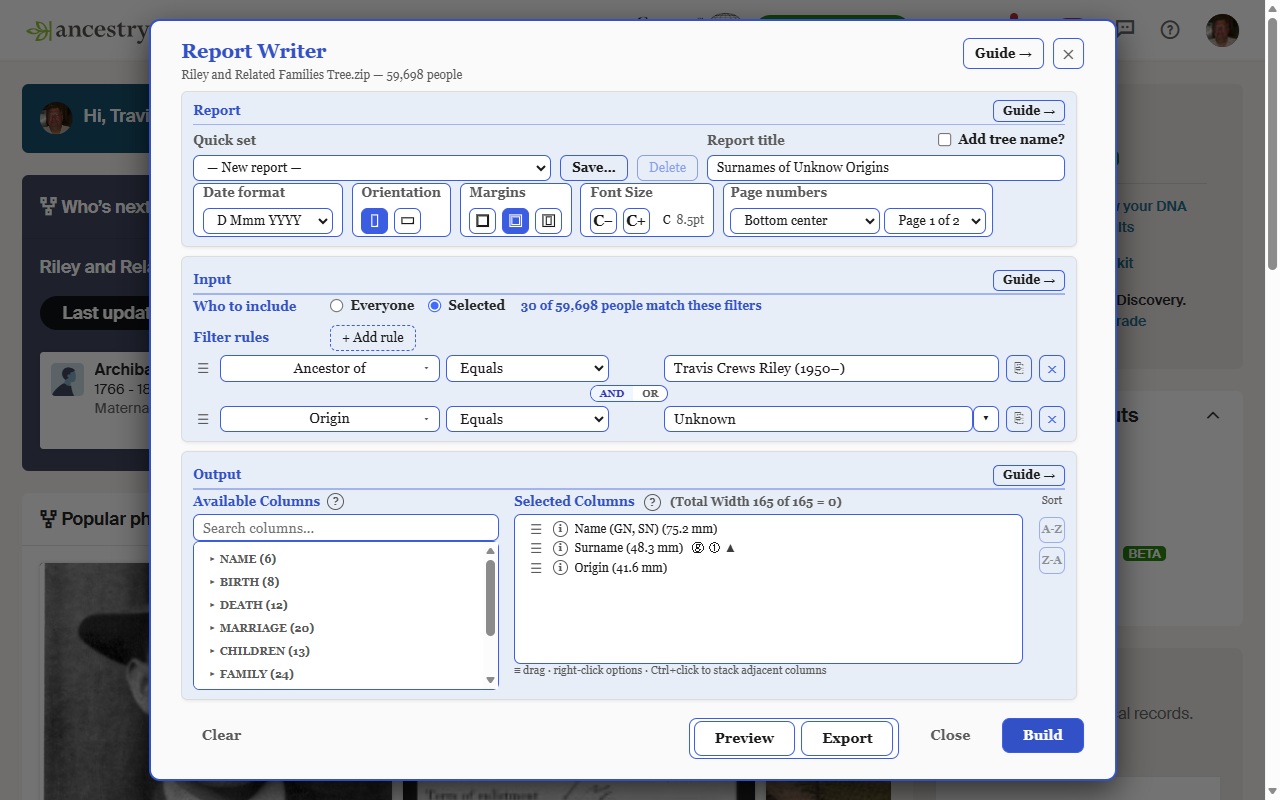
Build PDF reports from your imported GED index using a form-based editor — no AI and no cloud upload. Choose who to include (everyone or filtered rows), drag PDF columns between Available and Selected, set sort order, and optionally mark one column for grouping with subtotals (Totals only prints a Group / Count summary table). Ctrl+click two or three adjacent Selected columns to stack them in one PDF column (Birth Date over Death Date, for example). Right-click a Selected column to add Father, Mother, Spouse, or Children lines in that field without extra vital columns. Children follow their mothers in the stack. Same column is the default; uncheck it to set one column independently.
Open the Report Writer guide — step-by-step help for every part of the form, including filter OR logic and worked examples. Inside Report Writer, Help opens the same guide in a panel beside the form so you can read and work at once.
Filters use field / operator / value rules (equals, contains, date ranges, fuzzy name match, phonetic surname match, died-during-war presets, blood-line filters, Kinship Tier, and more). Contains on a county name matches that county as a unit (Tyler County / Tyler Co), not a city that happens to start with the same word (Tyler, Smith, Texas). Quotes around the value are optional. The value box is a combo: type a literal, or pick another field of the same kind (Birth State Equals Death State, Death Date Before Last Residence). Date-to-date compares use only the parts both dates have (year-only vs a full date compares year). Kinship Tier is the number of relationship steps from the nearest blood relative of the GED base person (99 means no path). Generations Away is a signed blood-line count from a person you pick on the filter (parents +1, grandparents +2, children −1, grandchildren −2; the selected person is 0). People with no parent–child path are blank. Without a picker it uses the GED base person. Origin is the ethnic label from Ancestry’s last-name meaning page (Irish, English, …), stored after a Facts page for that surname is opened. Older country or place strings such as Ireland or Tx Usa are ignored. Missing origins are Unknown. Closing Report Writer keeps an unsaved form draft for that tree and asks whether to resume it the next time you open the writer (Clear discards it). Full Name is listed in Available and Selected columns; the PDF heading stays Name. Postpartum columns use their full names in the picker (Postpartum Days, Child, Child DOB) and short headings on the PDF. Descendant of and Ancestor of use a person picker: type a name and choose the person (child, grandchild, … or parent, grandparent, …). Parent–child links only; the named person is omitted. Row OR chips pair a rule with the one above it; Ctrl+click to build control groups that OR across groups. Preview shows sample matching rows; Export saves CSV or TSV. Next to Output, choose Report (PDF only, default) or Report & CSV to also download a PID file (one Ancestry person ID per line, named after the report) for Bulk Replace.
Quick sets save your full spec per tree in local storage. Load a saved set to restore filters, columns, sort, grouping, and column widths. Sample reports include Born and died in same state and Residence after death (field-to-field filters). Preview shows the spec JSON before you build.
Report Writer shares the same GED index as the built-in reports. Switching Ancestry trees reloads that tree's stored index immediately. Re-import your GedCom when people or facts in that tree have changed. Date format can be overridden per report without changing Options defaults.
Relationship Finder
Blood or marriage tie between any two people
Canopy menu ✦ Canopy › GedCom Tools › Relationship Finder
Open any Ancestry profile as the first person. For each other person, type the name as Last Name, GivenName(s), choose from matching people in the imported GedCom index, and Canopy shows the closest consanguineous (blood) relationship when one exists. A name without that comma form is not searched until it is corrected.
The first person is the open profile, shown with the name on that profile. If no blood tie is found, Canopy states that and falls back to an affinal (marriage) relationship, or reports none if neither exists. When the two people are married to each other, Canopy reports husband or wife, and also reports a cousin or other blood relationship when the file has one. Parent links use the primary parent couple only; an alternate parent couple in the file is not used. Requires an imported GED index for the current tree.
After a path is found, click Show to open a PDF path chart in a new tab. The chart draws two columns down from the common ancestor (or one column for a direct line). When the two people are married and also share a blood ancestor, the chart shows that marriage first, then the same descent from the common ancestor used on the other charts. Male boxes are light blue and female boxes are light pink, at the same shade. Common ancestors are highlighted.
Reports
Report Reference
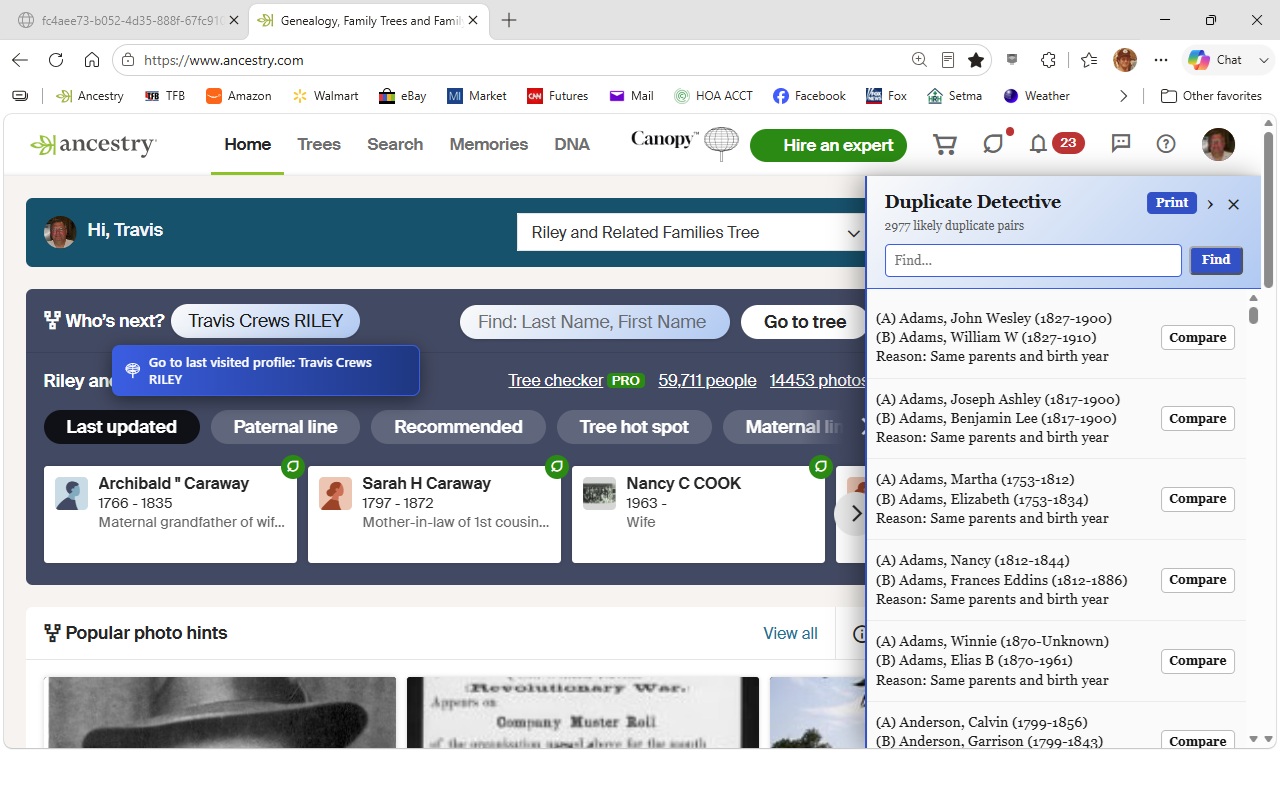
Canopy menu ✦ Canopy › GedCom Tools › Reports & Analysis runs these 33 reports against your imported GED index (Canopy v2.86.40), grouped into Data Quality & Relationship Checks, Family & Demographic Analysis, Pedigree & Lineage Charts, and Special Interest. Import a GED file first (Import GedCom File). Profile-based reports require an open Ancestry profile; tree-wide scans work from any page in the tree. During the 7-day trial, all reports remain listed; seven are enabled (Age Outliers, Duplicate Detective, Generational Gap Check, Narrative Register, Orphan Hunter, Kissing Cousins, and Who’s Your Daddy) and the rest appear disabled until a license unlocks the full set. Purchase from the trial-expired notice or ✦ Canopy › Purchase Canopy Now. After a PDF-only report finishes, Canopy reopens Reports & Analysis so you can pick the next report. Reports that keep a review sidebar (Duplicate Detective, Orphan Hunter, Origin Lookup, and the other panel reports) stay on that list instead. See also standalone reports reference.
| Report | What It Does | Output |
|---|---|---|
| Age Outliers | Flags parent–child relationships with biologically implausible ages—mothers outside childbearing range, fathers too old or too young, children born before a parent or after a parent’s death, and similar date conflicts. | Review panelOptional PDF |
| Ahnentafel | Builds a numbered ahnentafel ancestor list for the open profile (slot 1 = profile, 2 = father, 3 = mother, and so on), with names, dates, and places. | PDFUp to 14 generations |
| Ancestor Origins | Identifies foreign-born ancestors on the paternal and maternal lines whose birth country differs from the profile person’s. Requires a profile with a known birth country. | |
| Ancestor Pedigree | Lists direct-line ancestors of the open profile, grouped by generation (parents, grandparents, great-grandparents, etc.). | |
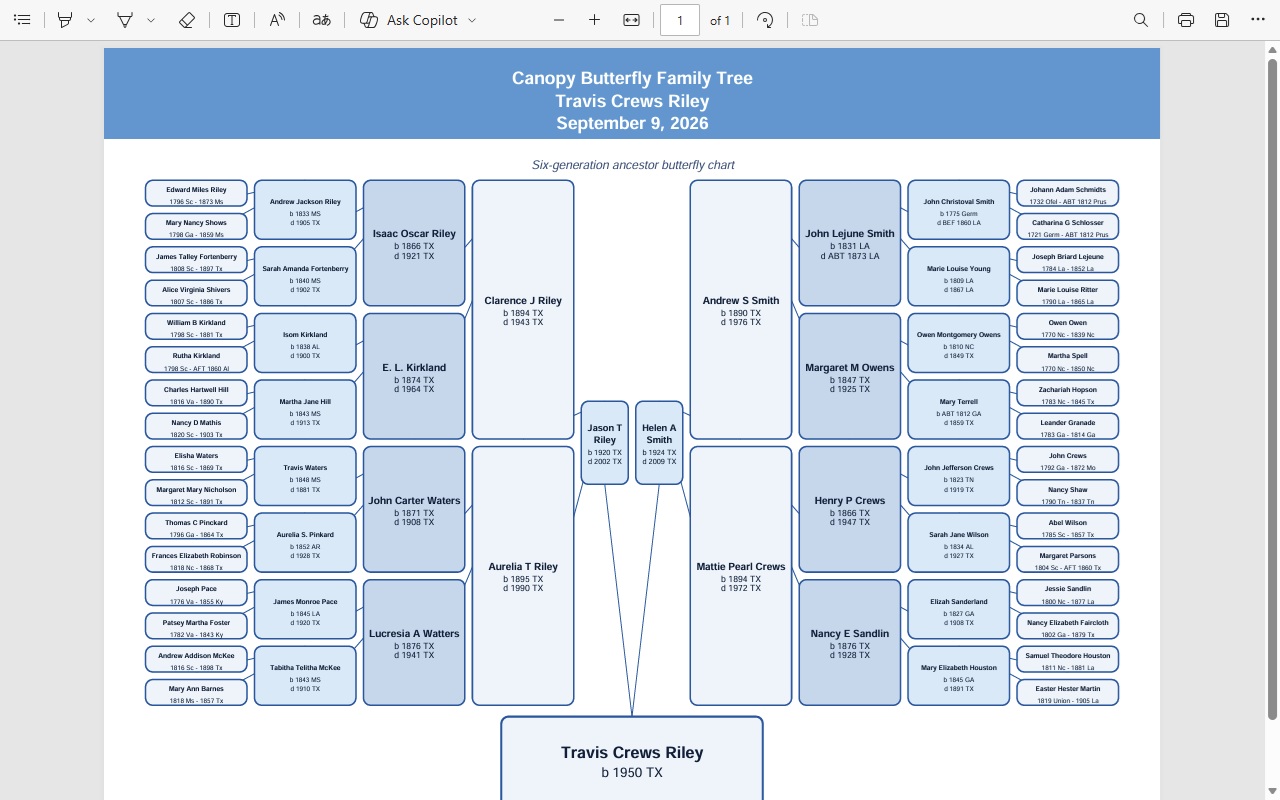
| Butterfly Family Tree | Generates a six-generation hourglass ancestor chart PDF for the open profile. | |
| Classic Fan Chart | Generates a 180° half-circle ancestor fan chart PDF for the open profile. Defaults to 5 generations (choose 3–5). Generation 1 is the profile person. Heading sits at the top margin; the chart is centered separately below it. | PDFLandscape Letter |
| Descendant Pedigree | Maps descendants of the open profile generation by generation, including spouses and children. | |
| Doubling DownSpecial Interest | Finds biologically valid double first cousin structures: two siblings from Family A marry two siblings from Family B (Sister Exchange and Two Brothers / Two Sisters). Each structure is a numbered block listing the two ancestral families, the two marriages that create it, and any DFC marriages among the resulting cousins. | |
| Duplicate Detective | Finds likely duplicate persons—same name and dates, same parents and birth year, same spouse and children, and similar matches. After you merge in Ancestry, Canopy removes the deleted person from the GED index and returns the review panel so you can pick the next pair. | Review panelOptional PDF |
| Family Group Sheets | Generates traditional family group sheet PDFs for selected families—parents, marriage, children, and vitals. A wizard lets you choose scope and generations. | |
| Fan Chart | Generates a full-circle ancestor fan chart PDF for the open profile. Choose 3–6 generations; Generation 1 is the profile at center. Locked rules: 5-gen is the standard set; 4-gen +2pt fonts; 3-gen +6pt fonts; paternal blue / maternal pink bands; on 6-gen charts gens 5–6 use Given / Surname / Dates. | PDFLandscape Letter |
| First Birth to Life Span | Tabulates average maternal lifespan by age-at-first-birth bucket (≤15, 16–20, 21–25, and so on). | |
| Funnel Ancestor Tree | Generates a six-generation landscape funnel chart PDF for the open profile. | |
| Generational Gap Check | Audits sibling spacing and parent–child timing within families: children born too close together, unusually long gaps, parents too young, and children born after a parent’s death. | Review panelOptional PDF |
| High-Risk Mothers | Highlights mothers with elevated childbearing risk patterns: very young or late first/last births, large numbers of children, or long spans between first and last child. | Review panelOptional PDF |
| Household Migration Report | For the open profile: opens with a generation-by-generation migration table (Start / Intermediate / Final regions), then lists person migration ranges for root through grandchildren. Uses GED events that include both DATE and PLAC. | |
| Kinship Report | For the open profile, builds a PDF kinship summary from the GED index with section headings for parents, siblings (full/half), spouses, children, extended kinship (grandparents, aunts/uncles, first cousins, niblings), step relations, in-laws, and calculated kinship terms. | |
| Kissing Cousins | Finds cousin marriages in the tree and shows each couple’s shared grandparents. | Review panelOptional PDF |
| Large-Family Mothers | Lists mothers with 14 or more children, flagging unusual first-birth age, last-birth age, or birth span. | Review panelOptional PDF |
| Marriage Analysis Report | Analyzes first marriages only from the GED index (no open profile required). Covers up to 12 generations back by time period. Outliers under 12 or over 60 removed. Two tables: average age at first marriage by generation and by marriage decade, with male and female counts/averages and a Gap column. | |
| Maternal Risk Report | Lists mother–child pairs where a woman died within 180 days of giving birth, grouped by likelihood (Strong Candidate, Probable Postpartum, Possible Pregnancy-Related). | |
| No Kin of Mine | Treats the first individual in the imported GedCom as the base person. At import, each person gets a numeric Kinship Tier: 0 for consanguineous blood kin, otherwise the shortest parent/child or spouse path to a blood relative, or 99 if there is no path. Lists people at distance 7 or more (including 99). Distances 1–6 are omitted because Prune Distant Branches never deletes them. Tagged Do not delete people still appear, with a Do not delete column and Connection noting that they are protected. Sorted by distance descending. Runs straight to PDF with no review panel. A Selection Criteria link on the title jumps to the full rules. | |
| Narrative Register | Builds a flowing narrative descendant register PDF for the open profile—prose life sketches with NEHGS-style numbering, family groups, and vitals woven into paragraphs. | |
| Orphan Hunter | Finds isolated individuals with no parents, spouse, children, or siblings in the GED index—people who may be unlinked or need further research. | Review panelOptional PDF |
| Possible War Deaths | Identifies likely military casualties by age, death year, and historically verified death locations for the Civil War (1861–1865), WWI (1917–1918), and WWII (1941–1945). | |
| Register Report | Generates an NEHGS-style numbered descendant register PDF for the open profile, with structured person entries, vital events, and child lists under each family. | |
| Relationship FinderGedCom Tools | Uses the open profile as the first person. Type part of the second person’s given name or surname, choose from matching people in the imported GedCom index, and Canopy shows the closest consanguineous (blood) relationship when one exists. If none is found, it states that and falls back to an affinal (marriage) relationship, or reports none if neither exists. | Interactive picker |
| Surname Index | Indexes surnames from the open profile’s pedigree (up to 10 generations) into Common, Maternal-only, and Paternal-only sections. Equivalent surnames are merged; ends with a Selection Criteria paragraph. | |
| Refresh Origins Table | Counts how many surnames in this GED import still have no origin. Origins are not invented here — they are stored from Ancestry’s last-name meaning page (Facts page or Origins on the Horizontal tree). | Local table |
| Surname Origins | Builds a whole-tree surname-to-origin list from the imported GED index (not a single pedigree). Equivalent surnames are merged. Origin is Unknown until Ancestry’s last-name meaning labels are stored (Facts page or Origins on the Horizontal tree). Older country or place strings (Ireland, Tx Usa, Laos) are dropped. Report Writer can filter and print the Origin column. Profile names show the origin in parentheses; click it to open the Ancestry page. | |
| Origin Lookup | Review panel of surnames that have not yet been stored from an Ancestry last-name meaning lookup, sorted by how many people have that surname. Equivalent spellings are grouped. Opening the list copies a known origin onto already-linked variants and onto a unique in-tree neighbor or vowel-swap whose origin is already stored. The heading shows how many surnames and how many profiles still need an origin. Start walks the list silently against Ancestry and saves hits; on a miss it tries a few same-length vowel-swaps (Castanza → Costanza). Names Ancestry does not list stay for research. Pause/Resume and Quit leave the sidebar open. The heading counts update only when the run is paused or quit. Double-click or Search clears the clipboard and opens Google for Surname surname origin. A copy icon above the blue highlighted origin phrase copies that text and closes the tab. When you return, Set opens and focuses the language box; if the clipboard then holds a language or country name (Italian, Italy), it is pasted and the clipboard is cleared. Set also assigns a language by hand. | Review panel |
| Surname Origin Mix | Facts-page pie button beside the surname origin. Builds a six-generation weighted mix of stored ancestor surname origins from the imported GED (first-listed label dominant: 70/30, 60/20/20, 50/20/15/15). Shares are of stored origins and add to 100%; empty slots affect coverage only. Groups under 1% combine as All Other. Print saves a PDF. | Facts modalOptional PDF |
| Surname Lifespan Analysis | Analyzes age at death by surname on the profile person’s paternal and maternal lines. Groups collateral relatives by surname, shows lifespan distributions and 70+ statistics, and excludes statistically insignificant surname groups. Requires an open profile. | |
| The Widowhood EffectSpecial Interest | Analyzes spouse pairs whose exact death dates fall within 0–7 days (Immediate Widowhood only). Includes an eight-column table, couple narratives, household and family context, statistical summary, and explicit evidence limitations. Immediate cases are highlighted; explicit ended unions and matching shared external-event evidence are excluded. | PDFLandscape Letter |
| They’re the Ones | Finds seventh sons and seventh daughters (the 7th boy or girl among siblings, even when opposite-sex children appear in between), plus true seventh sons and daughters (exactly seven boys or seven girls in sequence with no breaks). | Review panelOptional PDF |
| Twins & Then SomeSpecial Interest | Finds sibling groups of two or more who share a full birth date (Confirmed) or only a birth year (Suspected). Each group is labeled after the parents as Twins, Triplets, and so on. Mixed groups—some children with a full date and others with a year only—are omitted, and same-name siblings sharing a birth date are treated as duplicate records and dropped. | |
| Who’s Your Daddy | Lists individuals with a missing or incomplete father link—no father recorded, or father listed without enough detail to verify the connection. | Review panelOptional PDF |
Timeline Analysis & Data Validation
Profile Page — Timeline Validator (19 Rules)
When you click ✦ Timeline Analysis on a profile page, Canopy scrapes dated facts and family member birth/death years, then runs 19 checks organised in three groups. Issues are shown in a collapsible panel and the implicated fact cards are outlined in red. A badge on the Explore tab bar shows the count at a glance.
| # | Severity | Condition flagged |
|---|---|---|
| Group A — Individual Fact Checks | ||
| 1 | Error | Death before birth — death year is earlier than birth year |
| 2 | Warn | Implausible lifespan — more than 120 years between birth and death |
| 3 | Warn | Event outside lifespan — any non-birth/death fact dated before birth or more than one year after death |
| 4 | Warn | Marriage before age 14 — calculated age at marriage is under 14 |
| 5 | Error | Conflicting birth years — two or more birth records show different years |
| 6 | Error | Conflicting death years — two or more death records show different years |
| 7 | Warn | Duplicate marriage entry — the same marriage label appears more than once in the same year (likely a double entry, not a remarriage) |
| 8 | Info | 3+ marriages within 15 years — unusually many marriages in a short span; may indicate merged identities |
| Group B — Family-Based Checks | ||
| 9 | Error | Born after parent’s death — person’s birth year is after mother’s death (or more than 1 year after father’s death) |
| 10 | Error Warn | Parent too young at birth — error if parent was under 12; warning if under 14 (applies to both mother and father) |
| 11 | Warn | Parent unusually old at birth — mother over 50 or father over 80 at the time of person’s birth |
| 12 | Error | Child born after person’s death — a listed child’s birth year is after the person died (1-year grace for posthumous birth when father) |
| 13 | Error Warn | Person too young at child’s birth — error if person was under 12; warning if under 14 |
| 14 | Warn | Person unusually old at child’s birth — person was over 80 at the time of the child’s birth |
| 15 | Warn | No marriage before spouse’s death — a listed spouse died before any recorded marriage year (flags when all marriages post-date the spouse’s death) |
| 16 | Error Warn | Spouse too young at marriage — error if spouse was under 12 at the latest recorded marriage; warning if under 14 |
| Group C — Location & Record Checks | ||
| 17 | Info | Child born before marriage — a listed child’s birth year predates all recorded marriages; shows how many years before the nearest marriage |
| 18 | Info | Residence vs. marriage location mismatch — a residence fact and a marriage fact within 15 years are in different countries (e.g. Texas residence 1880, Mexico marriage 1884) |
| 19 | Info | Multiple arrival/immigration records — two or more arrival, immigration, or emigration facts show different years; lists all years found |
Merge Page — Vital Stats Check
On a merge page, Canopy runs a lighter check called Vital Stats. It compares the birth and death years shown for each candidate and flags obvious contradictions (death before birth, extreme lifespans). It does not scrape family cards.
When no issues are found, a green toast confirms the check ran:
This check runs automatically whenever Canopy processes the merge page — no button click required.
If a contradiction is found, the toast is replaced by a small orange banner pinned to the bottom of the screen, listing each issue as plain text with a × button to dismiss it.
Note: this lighter merge-page check is intentionally separate from the Profile Page Timeline Validator above — it does not add red fact-card outlines, an Explore tab badge, or a collapsible panel. If you’re expecting those, see “How Timeline Validator Issues Are Displayed” at right and run ✦ Timeline Analysis on a profile page instead.
How Timeline Validator Issues Are Displayed (Profile Page)
This applies to the Profile Page Timeline Validator (19 Rules) above — triggered by clicking ✦ Timeline Analysis on a profile page — not to the Merge Page Vital Stats Check at left.
Red outline — fact cards whose date is implicated by a failing rule are outlined in red so you can spot the problem without reading every line of the panel.
Tab-bar badge — a pill badge appears next to the Explore tab showing the issue count. Red background = at least one error; orange = warnings only; blue = info only. Click it to scroll the panel into view.
Collapsible panel — a panel titled “Data Conflicts” (errors present), “Data Warnings” (warnings only), or “Data Notes” (info only) appears below the Sources column. Each line is prefixed with ✖ (error), ⚠ (warning), or ℹ (info) and shows the years involved. Close it with the ✕ button; it is removed and rebuilt on each re-run.
Star Power — Quality Score Stars
Merge Page — Candidate Comparison Star
On an Ancestry Member Tree merge/compare page, Canopy scores your tree's panel and the member tree's panel independently on a 0–100 scale and draws a filled star on each — there is no relative “winner” comparison, so both panels can legitimately score high, both low, or anything in between.
Hovering a star shows the full points breakdown. Each component's value/max mirrors exactly what the formula used — never recomputed for display:
| Birth date | 15 pts exact — 8 pts year-only |
| Birth place | 5 pts |
| Death date | 15 pts exact — 8 pts year-only |
| Death place | 5 pts |
| Father linked | 5 pts flat |
| Mother linked | 5 pts flat |
| Spouse | 8 pts flat if 1 or more found |
| Children | 1 pt each, capped at 10 |
| Sources | 1 pt each, capped at 15 |
| Records | 2 pts each, capped at 20 |
| Photos | 1 pt each, capped at 5 |
Records are weighted twice as heavily as Sources (2 pts vs. 1 pt each) — a record is the specific document entry naming this exact person (a census line, a marriage license), while a source can be more generic or indirect evidence (a name index, a county-wide marriage list).
“Private (–)” entries — Ancestry’s placeholder for a living or privacy-restricted relative — are filtered out before counting Father, Mother, Spouse, and Children, so a redacted placeholder never earns points as if it were a real, named relative.
A panel with neither parent linked can never score above 95, regardless of how complete everything else is — the same no-parent rule used by the profile-page quality star below.
Star Color Scale
The merge-page comparison star and the profile-page quality star (right) share the same 0–100 scoring range and the same color scale, so a glance at the color tells you roughly where a score falls:
| 91–100 | Blue — excellent |
| 81–90 | Green — very good |
| 71–80 | Light green — good |
| 61–70 | Yellow — fair |
| 50–60 | Amber — weak |
| 25–49 | Violet — poor |
| 0–24 | Black — very poor |
Star label text color is chosen automatically for the highest contrast against its fill color (with a white-on-blue override, since the blue fill otherwise computes as dark text under standard contrast rules).
Profile Page — Quality Score Star
Facts page A small star appears in a dedicated badge row below the profile name, scoring how complete and well-evidenced the profile is, 0–100. Hover the star for a one-line breakdown: birth/death date quality, source count, timeline event count, and relationship count. The star shares a single switch with fact analysis, relationship marks, and the graph-distance badge; any automated run turns that switch off until it finishes.
Canopy first determines whether the person is recorded as living or deceased, then scores against a different set of weights for each — living people are never penalized for missing a death record.
Living vs. deceased determination
Deceased if any of the following are true: an exact or year-only death date is recorded, a Death fact card with an actual death date (not “Living”), a death place is recorded, a Burial or Cremation fact exists, or the birth year implies an age over 110.
Living if none of the above are true and a birth year is present giving a calculated age of 110 or under.
Scoring breakdown — deceased (max 108 raw, capped at 100)
| Birth date | 10 pts exact — 5 pts year-only |
| Birth place | 5 pts |
| Death date | 10 pts exact — 5 pts year-only |
| Death place | 5 pts |
| Burial / Cremation fact | 5 pts |
| Sourced birth / death / marriage bonus | +3 / +3 / +2 pts |
| Sources (coverage ratio + count, blended) | up to 25 pts |
| Marriage fact present | 8 pts |
| Timeline events (2 pts each) | up to 12 pts |
| Relationships (quality-weighted) | up to 20 pts |
Scoring breakdown — living (max 105 raw, capped at 100)
| Birth date | 20 pts exact — 10 pts year-only |
| Birth place | 10 pts |
| Sourced birth / marriage bonus | +3 / +2 pts |
| Sources (coverage ratio + count, blended) | up to 25 pts |
| Marriage fact present | 8 pts |
| Timeline events (2 pts each) | up to 12 pts |
| Relationships (quality-weighted) | up to 25 pts |
A missing death date is never a penalty by itself — living profiles use the living weight table above, which has no death-related categories at all.
Relationship quality weighting
Each parent, sibling, and child counts toward the relationship score: 3 pts if the family card shows a lifespan year, 2 pts if only a name is shown. Placeholder cards (“Add father”, “Unknown”, generic role labels) don't count. Cards labeled “Potential father” / “Potential mother” / etc. are unconfirmed hint suggestions, not accepted relationships — they don't count toward the relationship score or the parent count either.
No-parent cap
A profile with zero linked parents can never score above 95, living or deceased — parents are the link to the past, and their absence caps how complete the profile can be considered no matter how thoroughly everything else is documented.
Sourced vital bonus
Birth, death, and marriage facts that carry at least one source citation each earn a small bonus on top of their base date/place points — rewarding profiles where the key life events are backed by evidence, not just entered.
Profile Page — Kinship Step Badge
Profile pages A badge appears before the quality score star in a dedicated row below the profile name. Canopy reads the relationship Ancestry prints under the name and turns that phrase into steps from you. Hover shows the relationship and the step count.
Blood relatives get a red blood drop with the step count (a parent is 1, a grandparent is 2, a 5th great-grandparent is 7). Everyone else gets a pastel stairs pill with the same kind of count (a spouse is 1; a step or in-law adds a step).
Your own profile has no relationship line, so the badge is a blood drop 0. If the relationship cannot be read, Canopy shows no badge. This badge does not use the imported GED index. Reports, Relationship Finder, and Prune Distant Branches still use Kinship Tier from that index.
Each time you open the ThruLines ancestor list, Canopy adds anyone not already saved. The list runs through 5th great-grandparents, at most about 128 people. Canopy uses a page when the tree id in its address is your current tree. Facts, Gallery, Life Story, and the tree view follow that rule. The facts page matches the person id when the card has one. Otherwise it matches the name and relationship, such as grandfather or 2nd great-grandfather James Monroe "Jim" Pace, to the same wording on the facts page. The ThruLines icon sits to the left of this badge, at the same height, and opens that page in a new tab.
Color scale — red is reserved for the blood-relative drop. Steps 1–6 move from orange and amber through blue and teal to green. Every number is a deepened shade of its own pill, so it never washes out against the pastel.
| Blood drop — a blood relative | |
| 1 | Orange |
| 2 | Amber |
| 3 | Blue |
| 4 | Teal |
| 5 | Green |
| 6 | Deep green |
| 7+ | Slate — extended collateral kin, off the end of the scale |
The pill shows the actual distance, so a slate pill may read 7, 8, 9, or 99 — the value used for people with no path at all to the bloodline. These are the same people listed in the No Kin of Mine report.
Profile Page — Surname Origin
Facts page After the profile name, Canopy shows the surname origin in parentheses — for example John Myers (Irish/English/German/Dutch). The first time a surname appears on a Facts page, Canopy reads Ancestry’s last-name meaning page and stores the ethnic labels only (not the essay), including lines such as altered form of German …. Click a known origin to open that Ancestry page. Click Unknown to search Google for the surname origin (the same tab is reused if it is still open). Turn the profile origin off in Options › Behavior. A magnifying glass at the end of the Birth and Death places opens a Google search in a new tab. Unknown places have no glass. Coming back to this Ancestry tab closes that search.
Surname Origin Mix is the three-slice wheel beside the origin (it still appears if the origin chip is turned off). Click it to open a modal marked with a pedigree-fork icon. It needs an imported GED; the wheel is faded until that index is in this tab. Each ancestor surname origin votes; closer generations vote more, through six generations. The first-listed origin on a surname is dominant (70/30 for two labels, 60/20/20 for three, 50/20/15/15 for four). Shares are of stored origins and add to 100%; empty slots and unlabeled surnames affect coverage only. Groups under 1% combine as All Other. Print saves the mix as a PDF.
Origin Lookup lists surnames not yet stored. Start checks each name silently against Ancestry’s last-name meaning page and saves hits; names with no Ancestry page stay on the list for research. Pause/Resume and Quit stop the run without closing the sidebar. Search or double-click searches Google for that surname origin. On Horizontal tree view, Origins looks up the unique surnames showing on the tree — the same people as Canopy Scores — without opening each Facts page. Click an origin in that list to change an Unknown.
ThruLines
Gap Analysis
ThruLines Gap Analysis builds a PDF of the married couples whose DNA match counts both appear on the ThruLines page you have open. A husband and wife share the descendants below them, so those counts should be the same or very close. The mismatch is the gap divided by the smaller count. A couple at 500 and 575 is a 15% mismatch.
Couples are listed only when both spouses have a match count. Incomplete tiles are left out. The report is a reason to check the tree. It is not proof that either person is or is not an ancestor.
| Rank | What it means |
|---|---|
| No DNA | Both spouses show 0 matches. |
| High | 25% or more. A count of 0 against any other count is 100% and is listed here. |
| Moderate | 10% up to 25%. |
| Low | Under 10%. |
| None | Both counts match, and the count is not zero. These couples appear in the summary table only. |
Horizontal Tree Tools
Canopy Scores on the Tree
Pedigree tree · Horizontal mode The same top-centre toolbar (see Format Ancestors) also includes Origins, Canopy Scores, DNA lines ▾, and a small ▾ button at the right. The bar is fixed to the top of the tree display—it does not move with the root person’s node. It appears only in Horizontal view and hides when you switch layouts.
Canopy Scores appends each visible ancestor’s 0–100 quality score (same formula and color scale as the profile-page star) after the birth/death line on each tree card. The anchor person at the tree root shows a hollow star (☆); every other scored card uses a filled star (★).
Scoring opens each person’s profile in a background tab, reads the quality star, and updates cards as results arrive. Click Canopy Scores again only after a run finishes if you want to rescore after edits.
▾ Score averages — the chevron at the right toggles a summary panel below the toolbar (▾ closed, ▴ open). It shows mean quality scores for generations 0–4 on the visible tree:
- Overall — average across the anchor person and all visible ancestors through generation 4.
- By generation — Gen 0 (anchor) through Gen 4, one average per row.
- By line — separate paternal and maternal averages for generations 1–4 (left half vs. right half of the horizontal tree).
Only cards with a numeric score count toward each average. While scoring is still in progress, a figure may show how many cards are scored so far (e.g. 72.5 (3/8)). Click outside the panel or the chevron again to close it.
With Auto-run Canopy Scores on horizontal tree enabled in Options (recommended), scoring starts automatically when Horizontal view loads. Turn it off to score only when you click the button.
Origins on the Tree
Pedigree tree · Horizontal mode Origins on the top-centre toolbar reads unique surnames from the same people Canopy Scores marks on the tree — home person, ancestors, and spouses, not toolbar labels. It fetches Ancestry’s last-name meaning page for each surname that is still Unknown (without opening Facts pages), then shows a compact four-column list of surname and origin. Click a surname with a known origin to open Ancestry’s meaning page. Click an Unknown surname to search Google for Surname surname origin (the same Google tab is reused if it is still open). A copy icon above the blue highlighted origin phrase copies that text and closes the tab. Click an origin, including Unknown, to type ethnic labels such as English or English/Irish. Those stored labels also feed Surname Origin Mix on Facts pages.
Y-DNA and mtDNA Lines
Pedigree tree · Horizontal mode The top-centre toolbar includes DNA lines ▾, a dropdown with three checkboxes: Y-DNA, mtDNA, and X-DNA. Nothing is checked when the tree loads. The control appears only in Horizontal view. It uses the GED index already in this tab (after you import a GedCom, or after you run Ancestor Pedigree). It does not load the whole index from storage. Without that in-memory index, the feature is off.
Paths follow these rules from the home person (home is never outlined). Canopy uses the same parent walk as Ancestor Pedigree: find the home person, then follow father/mother IDs only (not a pass over the whole file). Y-DNA, mtDNA, and X-DNA paths are stored from that walk. Checking a DNA type only outlines cards from that store. Opening more branches only outlines people already on those stored paths who are now visible:
- Y-DNA (blue outline, #7FB8FF) — if the home person is female, no line is shown. If the home person is male, one path only: father, his father, and so on (FID→FID). Only males on that chain are outlined.
- mtDNA (pink outline, #FFB3D9) — for a male or female home person, one path: mother, her mother, and so on (MID→MID). Only females on that chain are outlined.
- Y-DNA and mtDNA may both be checked at once.
- X-DNA (lavender outline, #C9A7FF) — a female home person receives X-DNA from both sides of her tree (father and mother). A male home person receives X-DNA only from his mother. At every later ancestor, a male-to-male (father→son) link is cut; a female still contributes both of her parents. Checking X-DNA turns off Y-DNA and mtDNA; checking Y-DNA or mtDNA turns off X-DNA.
The home person is not outlined. Spouses, siblings, and everyone off those paths stay Ancestry’s default. Empty “Add father / Add mother” slots and Potential hint matches are skipped.
Compare with Canopy — Census Matching
How It Works
Source citation popup Hint review page A Compare with Canopy button appears next to U.S. federal and Canadian census records in two places: the source-citation popup opened from a profile's Sources list, and the “Does this match the person in your tree?” hint-review page reached from a tree hint suggestion. Both entry points share the same underlying matching engine, so a fix to one benefits both automatically.
Clicking the button runs the comparison, draws a scored star, and relabels the button to View Comparison — the detailed popup only opens on a second click (the result is cached, not re-computed). Enable Auto Compare Census in Preferences to run the comparison automatically the moment the page loads, instead of waiting for a click.
Canopy automatically detects which scoring method to use based on the census country and year on the record — see the cards below.
1850+ Census — Named-Row Matching
Starting with the 1850 census, each household row records an individual's name and age (and often a Relation-to-Head-of- House column). Canopy matches every row directly against your tree's known family roster — parents, spouse, siblings, and children — using a weighted similarity score:
Roster candidates who couldn't possibly appear — not yet born, or already deceased, by the census year — are excluded from matching automatically, rather than being offered as false candidates.
Boarding-house / institutional households: if the record's own subject has a non-family Relation to Head of House (Boarder, Servant, Lodger, Cousin, an in-law, etc.), the entire household's other rows are skipped instead of being flagged as missing family members — an unrelated household sharing a residence is not evidence of a missing relative.
Leftover rows: once every expected family member has a confident match, any remaining unmatched census row is hidden from the results rather than shown as noise. Unmatched rows are only displayed while a real, plausible family member is still unaccounted for.
Pre-1850 Census — Bracket Matching
Before 1850, federal schedules name only the head of household — everyone else is recorded as a tally mark in an age-and-sex bracket (e.g. “Free White Females, age 10 thru 15”), with no individual names to match against. Named-row matching doesn't apply, so Canopy instead checks whether your tree's known family as a group lines up with the household's recorded bracket totals.
Four partial-credit signals are blended equally into the overall score, each also shown as its own line in the results popup:
| Total persons | Household grand total vs. total family size |
| Total males / females | Sex totals vs. expected, summed per sex |
| Under / over split | Family count split at a per-year age line vs. the household's split |
| Per-bracket | Each individual bracket's count vs. expected, averaged |
Each signal uses partial credit (how close the counts are) rather than an all-or-nothing match, since era-typical imprecise age recording often misses an individual bracket by one person even for a confirmed-correct family.
Canadian Census — Named-Row Matching
Canadian collections (1851–1931, plus the 1906/1916 Prairie censuses) name household members the way the U.S. 1850+ schedules do. Canopy uses the same named-row score (Name 50% + Age 30% + Gender 20%). It never applies U.S. pre-1850 age-bracket matching to a Canadian title, even when the year is 1840 or earlier.
Country is read from the collection title only (Census of Canada, Recensement du Canada, Canada East/West). A U.S. federal schedule that lists Canada as a birthplace stays a U.S. census. The 1851 Census of Canada East/West was enumerated in January 1852 — ages are scored against 1852.
English and French relation, sex, and table labels are recognised (fils, épouse, Lien avec le chef, Membres du ménage, Oui on the hint bar). Early heads-only Canadian returns (1825, 1831, some 1842) have no U.S.-style bracket tables in Canopy; they compare only if a named household table is present.
Gender Name Database
When a census row's sex isn't directly stated (no Relation-to-Head or Sex column, or the row needs corroborating), Canopy infers gender from the given name using a real historical dataset — U.S. Social Security Administration birth-name records plus French and Canadian given names (INSEE, Retraite Québec, and a pre-1980 French-Canadian supplement), covering roughly 42,000+ names across the 1880s–1970s.
Name popularity by sex shifts over time (a name confidently male in 1880 may read as unisex today), so the dataset is bucketed by decade rather than a single all-time average, and Canopy picks the decade closest to the person's estimated birth year. Decades after 1970 are intentionally excluded — federal census records release 72 years after enumeration, so nothing recorded after 1970 will become relevant for a long time, and dropping that span also removes most of the dataset's bloat from purely modern names.
A name resolved with 80% confidence or higher for a sex is used without asking. Below that threshold, Canopy still uses its best guess but also queues the person in a one-time confirmation popup (Male / Female toggle, pre-set to the best guess) so you can correct it if needed. This replaced an earlier, much smaller hand-maintained name list that was prone to coincidental nickname/prefix false matches.
Name Formatting Options
Casing & Style
| Setting | What it does |
|---|---|
| Surname casingRec | Format all surnames as ALL CAPS, Proper Case, or leave as typed. UPPERCASE is recommended — Ancestry search matches it most reliably. |
| Given name casingRec | Apply Proper Case to given names (e.g. MARY ANN → Mary Ann), or leave as typed. |
| Nickname styleRec | Normalise parenthetical nicknames to double quotes — (Jack) → "Jack". Required for Ancestry’s search index to match the nickname. |
| Surname alternate styleRec | Convert parenthetical alternates to double quotes — (SCHLOSSERS) → "Schlossers". Required for Ancestry search; parentheses are not indexed. |
| Mc / Mac capitalisationRec | Properly capitalise Mc and Mac prefixes — mcdonald → McDonald, macarthur → MacArthur. |
| Nobiliary particlesRec | Lowercase particles (de, van, von, du, le, la) when they follow a given name. de Lafayette stays lowercase; Van Buren stays capitalised as a standalone surname. |
Prefix, Suffix & Cleanup
| Setting | What it does |
|---|---|
| Suffix correctionRec | Standardise suffix abbreviations — Jr → JR., Sr → SR., MD → M.D., II/III/IV stay as-is. |
| Auto-move suffixRec | Detect a suffix typed in the surname field and move it to the dedicated Suffix field automatically. |
| Prefix correctionRec | Normalise honorific prefixes — reverend → Rev., captain → Capt., doctor → Dr. |
| Unknown placeholderRec | Replace unrecognised placeholders (Unknown, Baby, Son, Wife, N/A, blank) with five underscores. |
| Expand abbreviations | Expand historical given-name contractions — Wm → William, Thos → Thomas, Jno → John, Jas → James, and others. |
Date Formatting Options
Format & Qualifiers
| Setting | What it does |
|---|---|
| Date formatRec | Output as D Mmm YYYY (5 May 1850), YYYY Mmm D, or ISO YYYY-MM-DD (sortable). D Mmm YYYY is the Ancestry standard and is recommended. |
| Qualifier punctuationRec | Control trailing periods on qualifier abbreviations — Abt (no period, recommended) or Abt. |
| "Estimated" mappingRec | Map all forms of "Estimated" to Abt (same bucket as About/Circa) or keep as a distinct Estd marker. |
| "Between" markerRec | Choose Btw. or Bet. for date-range records — e.g. Btw. 1820 and 1830. |
| Quaker numbered months | Expand Quaker calendar notation — 15 2d mo 1748 → 15 Feb 1748. |
| Old Style dual years | Resolve Julian/Gregorian dual dating — 1 Jan 1750/51 → 1 Jan 1751. |
Qualifier & Scope Rules
| Setting | What it does |
|---|---|
| Reformat About / CircaRec | Normalise all variations (about, c., ca., circa, approx.) to the standard Abt qualifier. |
| Reformat BeforeRec | Normalise all "Before" variants (bef., prior to, <) to Bef. |
| Reformat AfterRec | Normalise all "After" variants (aft., post, >) to Aft. |
| Reformat BetweenRec | Normalise all "Between … and …" variants to the standard Btw / Bet range form. |
| Reformat CalculatedRec | Normalise all "Calculated" variants to Calc. |
| Remove Unknown datesRec | Clear date fields that contain only "Unknown", "Unk", or equivalent placeholders. |
| Birth & Death only | Restrict date reformatting to Birth and Death facts only; skip Marriage, Residence, Burial, and other event types. |
Place Formatting Options
Country & State Normalisation
| Setting | What it does |
|---|---|
| Country formatRec | Append the US country token as USA (recommended), "United States", or "United States of America". |
| State displayRec | Expand state abbreviations to the full name (TX → Texas) or convert full names to 2-letter abbreviations. |
| Auto-append countryRec | Automatically add the country token to US places that are missing it. Austin, TX → Austin, Texas, USA |
| Translate country namesRec | Convert native-language names to English — Deutschland → Germany, España → Spain, Österreich → Austria, Frankreich → France, Polska → Poland, and many others. |
| Expand abbreviations | Expand shorthand country references — Eng. → England, Ire. → Ireland, Scot. → Scotland, Fr. → France, Can. → Canada. |
| Locality casingRec | Apply Proper Case to city and locality names, or leave as typed. |
County, Parish & Lookup
| Setting | What it does |
|---|---|
| "County" suffixRec | Strip the word "County" from the middle token (recommended), keep it, or abbreviate to Co. / Co. |
| Insert County if missing | When "Keep" or "Abbreviate" is chosen, insert the County token into places where it is absent. No effect when Strip is selected. |
| "Parish" suffix (LA)Rec | Same Strip / Keep / Abbreviate control for Louisiana parishes. Optionally insert if missing. |
| "District" suffix | Strip, keep, or abbreviate (Dist.) the District subdivision token used in some historical records. |
| Strip Ward patternsRec | Remove "Ward #" suffixes that appear in city names on US census records.
Houston Ward 4 → Houston
Exception: when a numbered ward ("2nd Ward", "Ward 2") stands alone as the first part of a place, it names the locality itself and is left unchanged. 2nd Ward, Webster, Louisiana, USA → 2nd Ward, Webster, Louisiana, USA |
| Add County on state-index records | Expand a bare county name on Birth / Death / Marriage / Divorce state-index records to the full county + state + country form. |
| Look up & insert county | When a place is City, State or City, State, USA only, query a 164,000-entry US database to insert the correct county. A disambiguation prompt appears when the city name exists in multiple states. |
| Birth & Death only | Restrict place reformatting to Birth and Death facts only; skip other event types. |
When a fact date beside the place names a single year, the current county is valid in any year. Before that county was organized, a parent county from the Atlas of Historical County Boundaries is also valid. After it was organized, auto run changes a parent county to the current county. A county that is neither the current county nor a parent asks you to choose. A missing date, or a date that spans more than one year, keeps today’s county list.
Surname Equivalences
Equivalence Pairs
A table of surname pairs Canopy treats as the same name — mainly for names anglicised over generations across many immigrant heritage groups. Lejeune ↔ Young, Schmidt ↔ Smith, and Breathnach ↔ Walsh are typical examples.
With a pair on file, the formatter will not flag or "correct" one spelling when the other is the one actually expected for that family line — e.g. a child surnamed differently from the father is not flagged as a mismatch if the two surnames are a registered equivalent pair.
Pairs can be added manually in Preferences (Surname A ↔ Surname B), and are also learned automatically during a Format Family run whenever you confirm a surname variation belongs to the same family.
Surname Check Behavior
| Setting | What it does |
|---|---|
| Flag children's surname | During Format Family / Format Ancestors, prompts when a child's primary surname doesn't match the profile or preceding spouse's surname — unless the two are a registered equivalence pair. |
| Married name suggestion | When a female spouse's last name doesn't already include the husband's surname, offers to append it as a quoted alternate — SMITH → SMITH "Jones". The same offer is made for the father's surname as an alternate on a mother's record. |
| Accent variantsRec | Treats accented and unaccented spellings as the same surname automatically, with no explicit equivalence pair needed — Cantú ↔ Cantu, González ↔ Gonzalez, Müller ↔ Muller. |
Behavior
Automation & Workflow
| Setting | What it does |
|---|---|
| Auto-format sidebarRec | Runs the formatter on Edit Person sidebar fields the instant Ancestry opens the sidebar — no need to click "Format Fields" yourself. |
| "Last Profile Visited" bannerRec | Shows a banner on home/tree pages linking back to the last profile you visited. Appears once per tab session when Auto-open last profile is off. |
| Auto-open last profile | On the Ancestry home or tree landing page, navigates directly to your last visited profile instead of showing the banner. Once per tab session. |
| Capture merge page imagesRec | On hint match pages, automatically captures the hint photo and offers to upload it to the person's gallery, named after the person in your tree. |
| Auto Compare Census | Runs the census comparison automatically when a census source or hint page loads, instead of waiting for a click on "Compare with Canopy". |
| Auto-run Canopy Scores on horizontal treeRec | When the pedigree tree is in Horizontal view, starts Canopy Scores automatically as soon as the button row appears. The Canopy Scores button remains available for manual rescoring when this is off. |
| Linking-family card arrowsRec | Marks the Parents / Spouse / Children card on your path to the tree home person. The kinship-label arrow still appears when this is off. When the path is not already saved, Canopy reads Relationship to me off-screen once so the next-node card arrow appears without a manual open, including on the home person’s own profile. The tree home person is marked with * wherever they appear as a parent, spouse, or child, and in the Relationship to me dialog. A saved path, or the dialog if you open it yourself, is reused after that. |
Validation & Tagging
| Setting | What it does |
|---|---|
| Lifespan validatorRec | Flags impossible or suspicious date combinations on profile pages — death before birth, events after death, an implausible lifespan, a very young marriage, etc. See Timeline Analysis for the full rule set. |
| Merge page vital stats checkRec | Shows a warning banner on merge/compare pages when the right-column candidate's dates are impossible — death before birth, marriage before birth or after death, an implausible lifespan, etc. |
| Apply "Canopy Formatted" tag | Automatically applies the tag to the profile person when Format Family or Format Families completes. Success is quiet so it does not replace the formatting progress banner. Warnings still appear if the tag cannot be applied. Logged in the change report as its own + Canopy entry. |
Color Theme
Color Style Selection
A grid of color themes for Canopy’s full interface — the Options page, popup, menus, dialogs, reports, and other Canopy panels on Ancestry pages. Pick whichever palette is easiest for you to read.
Ancestry’s own page chrome is unchanged; only Canopy-drawn UI follows the selected theme. Changing the theme updates Options immediately and applies to open Ancestry tabs after a refresh (or when panels are rebuilt).
Troubleshooting
After Updating Canopy
Chrome keeps the old content script running in tabs that were already open. After you install a new version, reload every Ancestry tab (or close and reopen them) so Canopy loads the update.
At chrome://extensions, click Reload on Canopy if
you loaded the extension unpacked from a folder. The toolbar popup shows the
installed version and warns when the active Ancestry tab is still on an older
loaded build — refresh that tab to pick up the new code.
Graph-distance badges, new menu items, and Prune Distant Branches all require both an updated extension and a GedCom import on the current tree. Re-import if your index predates Kinship Tier.